
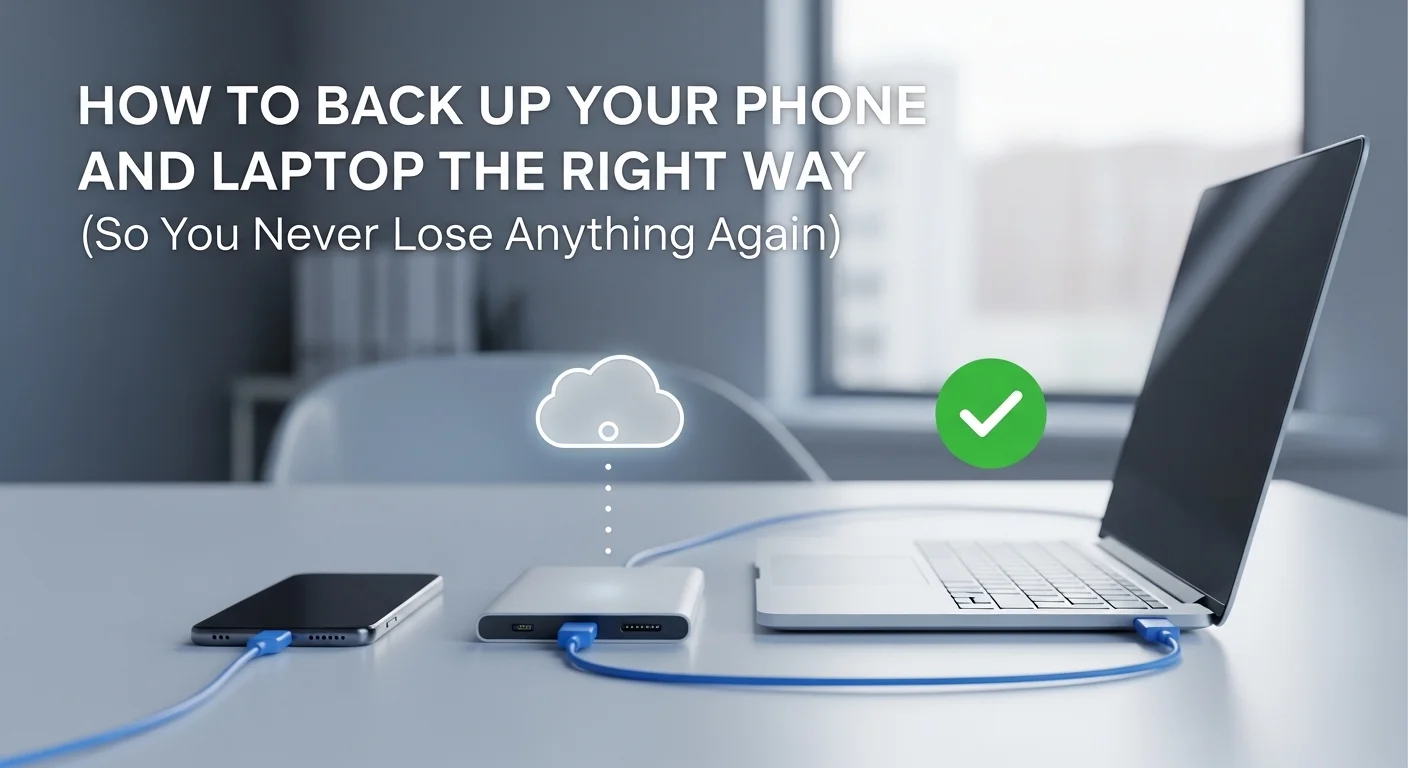
How to Back Up Your Phone and Laptop the Right Way (So You Never Lose Anything Again)
Nobody thinks about backups until something goes wrong. Then, in the space of a few minutes, you realise that eight years of photos, contracts, school memories and tax records have vanished with one dropped phone or one failed hard drive. The good news is that backing up your devices in 2026 is easier, cheaper and more automatic than ever. Set it up once, and you can mostly forget about it.
Thank you for reading this post, don't forget to subscribe!This post walks you through a simple, genuinely reliable backup plan for both your phone and your laptop. Follow it once this weekend and you will never have to panic about losing your files again.
The 3-2-1 Backup Rule (Easier Than It Sounds)
Professional IT teams swear by the 3-2-1 rule, and it works just as well for households. Keep three copies of your important data. Store them on two different types of storage. Keep one of those copies off-site, somewhere far from your main devices. That is it.
In practice for a home user this might mean: the original files on your phone or laptop, a cloud backup through iCloud or Google, and an external hard drive kept at home. It takes one Saturday afternoon to set up and protects you from almost every disaster, including theft, fire and drive failure.
How to Back Up an iPhone
For iPhones, iCloud is the easiest option by a long way. Open Settings, tap your name, then iCloud, then iCloud Backup, and turn it on. Your phone will back up nightly while charging and connected to Wi-Fi. The free 5GB is not enough for most people. The £0.99 monthly 50GB plan is. The 200GB plan is better if you take lots of photos or share a family plan.
For an extra layer, connect your iPhone to a Mac or Windows PC occasionally and back it up locally through Finder or the Apple Devices app. A local backup is faster to restore from and gives you a second copy that does not rely on the cloud.
How to Back Up an Android Phone
Android users should head to Settings, then Google, then Backup, and turn it on. This saves app data, contacts, settings and messages to your Google account. For photos and videos, open Google Photos, tap your profile, and make sure backup is enabled. Choose the Original quality setting if your storage allows, so you never lose image quality.
The 15GB free Google storage fills up quickly. Google One plans start at around £1.59 a month for 100GB. For most Android users this covers everything safely, and one plan can be shared with family.
How to Back Up a Windows Laptop
Windows 11 has two built-in backup tools. OneDrive automatically backs up your Desktop, Documents and Pictures folders to the cloud. Open Settings, then Accounts, then Windows Backup, and turn it on. The 5GB free plan is tiny. A Microsoft 365 subscription at around £8 a month includes 1TB, plus Word, Excel and PowerPoint, which is hard to beat.
For a second copy, plug in an external hard drive and use File History, also found in Settings. It will back up your personal folders on a schedule. Two copies, two types of storage, ticking the 3-2-1 boxes nicely.
How to Back Up a Mac
On a Mac, the built-in Time Machine tool is excellent. Buy an external hard drive of at least twice your Mac’s storage, plug it in, and when macOS asks if you want to use it as a Time Machine backup, say yes. From then on, it will back up automatically every hour when the drive is connected.
For cloud backup, iCloud Drive or Backblaze work brilliantly. Backblaze costs a flat monthly fee and backs up everything on your Mac automatically, quietly and in the background. Many photographers and writers swear by it.
Do Not Forget the Photos
Photos are the thing people cry over when they are lost, so give them extra protection. Even if your phone is already backing up to iCloud or Google Photos, consider exporting your most precious albums once a year to an external hard drive or a free account on a second service like Amazon Photos, which is included with Prime memberships.
This protects you from the rare but real scenario of a cloud account getting locked, hacked or closed. Two cloud services plus one local drive, and your memories are almost bulletproof.
Test Your Backups
A backup you have never tested is not really a backup. Once every few months, pick a random file and practice restoring it. Open iCloud, Google Photos, OneDrive or your external drive and make sure you can actually get the file back. This small habit means you will never find out too late that something went wrong weeks ago.
Keep Passwords and Keys Safe Too
Your backups are only as good as your access to them. Use a password manager like Bitwarden, 1Password or the built-in options in iOS and Android to store your accounts. Write down your most important recovery codes on paper and keep them in a safe place at home. If you lose both your phone and your laptop, you still need a way back in.
Plan for What Happens If Something Goes Wrong
Take a few minutes to write a short recovery plan. Note where your backups live, what the passwords are, and who in the family should know. Share it with a partner or trusted family member. It feels morbid for ten minutes and priceless if you ever actually need it.
Final Thoughts
Backing up is one of those tiny tasks that sits somewhere between flossing your teeth and checking your smoke alarms. Nobody enjoys it, but you will be very grateful you did it the day something breaks. Spend one quiet afternoon setting up cloud backups on your phone and laptop, add an external drive as a second copy, and you are essentially disaster-proof. A few hours of effort now buys years of peace of mind later. That is as good a deal as tech ever gets.